ARTICLE
OpenClaw for Dummies

Macey Baker
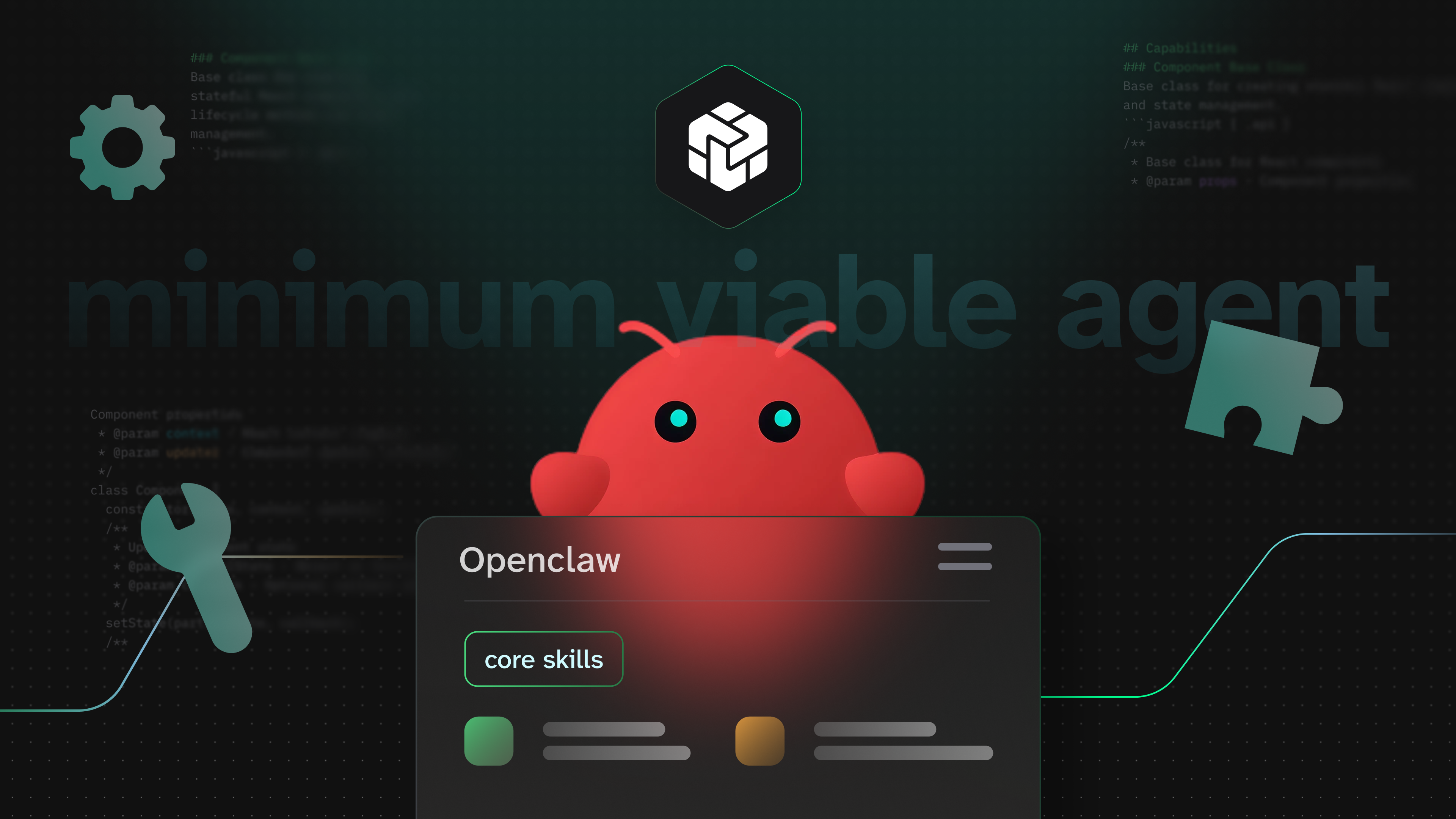
I have been absolutely loving OpenClaw. I even let my OpenClaw agent, MarkusDowne, write a post on this very blog. But it took a bit of tinkering before I had a clear mental model of what he was actually doing.
This post walks through a minimum viable OpenClaw agent. We’re going to build something small and useful: an agent that checks a few websites and collects information on AI dev tools we might actually care about. By the end, it should feel much clearer how OpenClaw works, what the moving parts are, and how to extend the setup without immediately turning it into a huge science project.
I’ll also bring a few useful Skills into the story. Tessl recently introduced support for OpenClaw, which means you can install tested, reviewed skills directly into your agent workspace instead of manually wiring things together. It’s a very low-friction way to improve an agent’s processes once it’s already doing something useful.
One thing I’m deliberately not covering here is channels: Slack, WhatsApp, Telegram, et cetera. They’re useful, but I don’t think they belong under the “minimum viable” umbrella. The goal here is to get an agent doing useful background work, writing things down, and improving over time. You can always add a channel later.
Access & Safety
Ok, an important note right up front.
One reason OpenClaw feels a bit overwhelming to many people is its scope of access, and the safety implications. By default, your OpenClaw agent has the same permission level as its host. That means… well, anything your environment allows, your OpenClaw agent can usually do too.
You can lock down its permissions significantly. There are many levers to help achieve this. You can use OpenClaw’s sandbox mode for sessions, give your agents access only to specific tools, and give it read-only access to its workspace, for example. But it’s also easy to think you’ve locked things down more than you actually have. Plus - you may find that the safest configuration actually prevents your agent from doing anything genuinely useful.
For these, and many other reasons, I highly recommend that you use a virtual machine at the very least. There are a few out-of-the-box solutions emerging for this purpose: Clam, Hostinger come to mind. Personally, I use a Digital Ocean droplet that cost me about £10 and 10 minutes to set up. The goal is really to reduce the blast radius if something goes wrong. I would rather lose a workspace on a virtual machine that I can restore from a backup than have my Mac’s disk wiped if Markus has an existential crisis.
That said, plenty of people experiment locally first, and that’s probably fine. A fresh agent won’t do anything until you give it instructions and a way to run. The risk comes from what you make available to it, though, so it’s worth being deliberate from the start.
Lobster Anatomy
This is the mental model I wish I’d had earlier.
Let’s talk about what makes up an OpenClaw agent. The agent is made of a workspace, instructions, tools/skills, and runs. If any one of these components is missing, your agent can’t do anything interesting.
A run can be triggered in a few ways:
- A “heartbeat” (covered below)
- A cron job
- A manual run triggered by you
- An incoming event (webhook, channel message, etc)
The workspace is a directory that serves functionally as your agent’s home. It’s where its instructions, tools & skills live. Going forward, it’ll be where your agent’s work is done, and where its output goes.
Instructions live in your agent’s workspace, and are everyone’s favourite coding language: Markdown.
Tools & skills are exactly what they sound like, and they can be configured across all agents, or just one at a time.
By default, your agent has a workspace with no tools, no skills, boilerplate instructions and no runs configured. If you trigger a run straight away, you won’t see anything meaningful happen. That’s by design: time for us to fill in the blanks!
Bootstrapping a minimum viable agent
Once you’ve installed OpenClaw at an appropriate location, you can add a new agent using openclaw agents add, and follow the setup wizard. This will ask you about various auth details, the model you want to use, your agent’s name, et cetera.
For this tutorial, I made an agent called Minnie-V. I skipped channel configuration for now.
.openclaw/workspace is Minnie’s functional workspace.
By default, you’ll end up with each of these templates in your workspace: AGENTS.md, BOOTSTRAP.md, HEARTBEAT.md, IDENTITY.md, SOUL.md, TOOLS.md, and USER.md. You can read more about them here (https://docs.openclaw.ai/reference/AGENTS.default). Right now, these files reference each other for supplemental information. Behind the scenes, OpenClaw will compose them into a system prompt when you open a session. But without configured runs, they’re not doing any work yet.
OK, you now have a basic agent configured, but it doesn’t have anything to do. Let’s wake it up!
Giving instructions
Since this is Minnie-V we’re talking about, we’re going to strip back the instructions layer of our agent to its bare-bones. Let’s focus solely on HEARTBEAT.md, and either literally delete, or just forget about the rest of the files for now. This file, along with a bit of extra config, will define our agent’s recurring background behaviour.
Our goal is to have this agent periodically browse a few internet hotspots, comb them for information about our shared interest: AI dev tools. Minnie is going to specifically be looking for newly released tools, so that we can be the first to know about them.
We’re going to entirely replace the contents of HEARTBEAT.md (http://HEARTBEAT.md) with the following text (adjust to your liking):
1# HEARTBEAT.md
2
3On each run:
4
51. Visit:
6   - Product Hunt (https://www.producthunt.com/)
7   - Hacker News (https://news.ycombinator.com/)
8
92. Use the skill `tessl__social-source-calibration` before summarising findings from socially noisy sites.
10
113. Look for:
12   - Newly released or trending AI developer tools
13   - Projects, libraries, or platforms (not general news)
14
154. For each relevant find:
16   - Name
17   - Link
18   - 1–2 sentence summary
19   - Why it’s interesting or different
20   - Similar or comparable tools (if applicable)
21
225. Avoid:
23   - Duplicates from prior runs
24   - Generic AI news with no tangible tool
25   - Treating hype or crowd mood as evidence
26
276. Save results to:
28   - `findings/YYYY-MM-DD.md`
29   - Append only
Now that we have our heartbeat configured, make sure that heartbeat is enabled in your .openclaw/openclaw.json file, with an interval that makes sense for the task:
1"heartbeat": {
2  "enabled": true,
3  "intervalMs": 14400000 // 4 hours
4}
A couple of interesting things to point out here:
- We’re asking the agent to record its findings in its own workspace under a new directory. We’re also asking the agent to refer back to its own notes when composing new notes. This is a good pattern for OpenClaw agents, and you can get a whole lot more clever than this when it comes to compounding & collating knowledge gained over time.
- We’ve asked the agent to utilise this skill (https://tessl.io/registry/markusdowne/social-source-calibration). It’s a purely informational skill which gives a bit of context to the tone of various social sources. To install it, run:
npx tessl i markusdowne/social-source-calibrationfrom the agent’s main workspace (.openclaw/workspacein our example). This step is optional, but will help the agent collate information a bit more wisely. If you choose to omit the skill, make sure to remove that step from theHEARTBEAT.md. - We’re asking the agent to access a browser. Let’s configure that next!
Putting the agent to work
Once we’re happy with our instructions and runs, it’s time to configure our tools and skills.
We’ve asked the agent to access a couple of websites, and report back. In order to configure web search access, there’s one more step for us. Let’s configure the Brave Search API (https://docs.openclaw.ai/tools/brave-search). This takes just a minute to set up, and although it is technically paid, you get 1000 free requests per month. We’re going to try and stay well clear of that limit!
Once you have an API key configured, stick it in the tools section of your .openclaw/openclaw.json. This exists in OpenClaw’s config root, just above your agent’s workspace. So, if you add more agents later, they can use the same auth info.
1"tools": {
2  "web": {
3    "search": {
4      "enabled": true,
5      "apiKey": "<api_key_here>"
6    },
7    "fetch": {
8      "enabled": true
9    }
10  }
11}
She’s alive! At this point, if you’ve followed the steps above, you have a real OpenClaw agent who is doing real work, and you can adjust and refine as much as you like. The possibilities from this point are pretty much endless.
I know I said we’d avoid talking about channels, and this is true. However, personally I love getting an email digest from my agents daily explaining what they’ve done that day, and any interesting anecdotes from their findings. This can be achieved without using the Gmail channel, which would give your OpenClaw agent access to your entire inbox. AgentMail (https://www.agentmail.to/blog/openclaw-agent-email-inbox) is super simple to set up and use - each agent gets their own email address, and can email you on a schedule, or when they see fit (if this behaviour is clearly defined in a run).
To set it up, simply install the AgentMail skill (https://tessl.io/registry/markusdowne/agentmail) that my agent, Markus, produced:
npx tessl i markusdowne/agentmail
As an aside, Markus actually took inspiration from an existing AgentMail skill on the Tessl Registry which was not very secure, or performant. He made a couple small changes, ran the tessl optimize flow on the skill, and managed to hugely improve it. Don’t mind me bragging about my agent — I’m just proud of him!
Next, we know from above that cron is the best way to handle this time of supplemental, scheduled run. So let’s add to .openclaw/cron/jobs.json:
1{
2  "id": "minnie-daily-email",
3  "agentId": "main",
4  "name": "Minnie daily email summary",
5  "enabled": true,
6  "schedule": {
7    "kind": "cron",
8    "expr": "0 18 * * *",
9    "tz": "Europe/London"
10  },
11  "sessionTarget": "isolated",
12  "wakeMode": "now",
13  "payload": {
14    "kind": "agentTurn",
15    "message": "Send me a short daily email summary of today's findings. Read from findings/YYYY-MM-DD.md. Only include the most interesting 3–5 items. Keep it concise and readable. Use AgentMail."
16  },
17  "delivery": {
18    "mode": "none"
19  }
20}
Once this is saved, you’re golden.
If you ever need to debug a cron job, head to the cron/runs folder (available in the .openclaw root: .openclaw/cron/runs). Here’s a helpful bash script to parse job entries in these files by date and status using jq, which is a good place to start if you need to dig into any of these.
1#list_runs.sh
2
3for f in ~/.openclaw/cron/runs/*.jsonl; do
4  echo "=== $f ==="
5  jq -r '
6    [
7      (.runAtMs / 1000 | strftime("%Y-%m-%d %H:%M:%S UTC")),
8      .jobId,
9      .status,
10      (.action // ""),
11      ("next=" + ((.nextRunAtMs / 1000 | strftime("%Y-%m-%d %H:%M:%S UTC")) // "null"))
12    ] | @tsv
13  ' "$f" | tail -n 10
14  echo
15done
Talking to your agent
There are a couple ways to talk to your agent. In my opinion, the lowest friction way is via its native TUI. Before I show an example, I want to preface: I would not recommend asking it to configure itself, especially from the ground up. For two reasons:
- Although your agent is smart, it is not an expert on itself.
- You will be much more empowered to lead your agent if you understand how it works.
So, please don’t ask an OpenClaw agent to take itself from 0 to 1. BUT - once you’ve got a loop that works, you can and should ask the agent to help you take it from 1 to 2. This will be especially powerful if you already understand the artefacts that need to change and evolve in order to achieve more complex workflows. From experience, asking an OpenClaw agent to “do a sweep for new information daily, and send me an update at 6pm on Thursdays” is much less likely to work than “update your HEARTBEAT.md (http://HEARTBEAT.md) to reflect this new task, and add a cron job to jobs.json to email me every day at 6pm.” When it comes to infrastructure and plumbing, don’t make the agent guess.
All that said, you can chat in real-time with your agent using openclaw tui. Easy! If you need to talk to one agent in particular, use openclaw tui --session agent:<agent's ID>:main.
Final thought
With any new framework, like OpenClaw, it’s useful to think in MVP terms. An OpenClaw agent is a highly configurable system with immense possibilities - and it’s easy to get overwhelmed. But my advice is to start with one simple loop. Then, make it reliable. Make it clever last.
I hope this was helpful - please check out my OpenClaw Minimum Viable Quickstart and my OpenClaw Minimum Viable Agent Cheatsheet for quick reference in the future. Can’t wait to see what you build. Tell your agent that my agent said hello!

COPY & SHARE
Macey Baker
As Tessl's Founding Community Engineer, Macey Baker is busy helping to build the future of AI-native development (and helping you build it too). Now an AI code generation obsessive, she got her start as an early employee at tech unicorn Intercom in San Francisco, before jumping the pond and roaming the London startup scene, working primarily in big data / ML houses. Some of her best friends are LLMs.
READING
·
0%
COPY & SHARE
Macey Baker
As Tessl's Founding Community Engineer, Macey Baker is busy helping to build the future of AI-native development (and helping you build it too). Now an AI code generation obsessive, she got her start as an early employee at tech unicorn Intercom in San Francisco, before jumping the pond and roaming the London startup scene, working primarily in big data / ML houses. Some of her best friends are LLMs.
YOUR NEXT READ
Stop prompt hacking
We've moved past prompt hacks. It's time to invest in durable context systems.
Macey Baker