ARTICLE
Getting started with Tessl & GitHub Copilot
Discover how Tessl seamlessly integrates with GitHub Copilot for enhanced coding. Learn setup tips and maximize your productivity today!

Shawn Miller
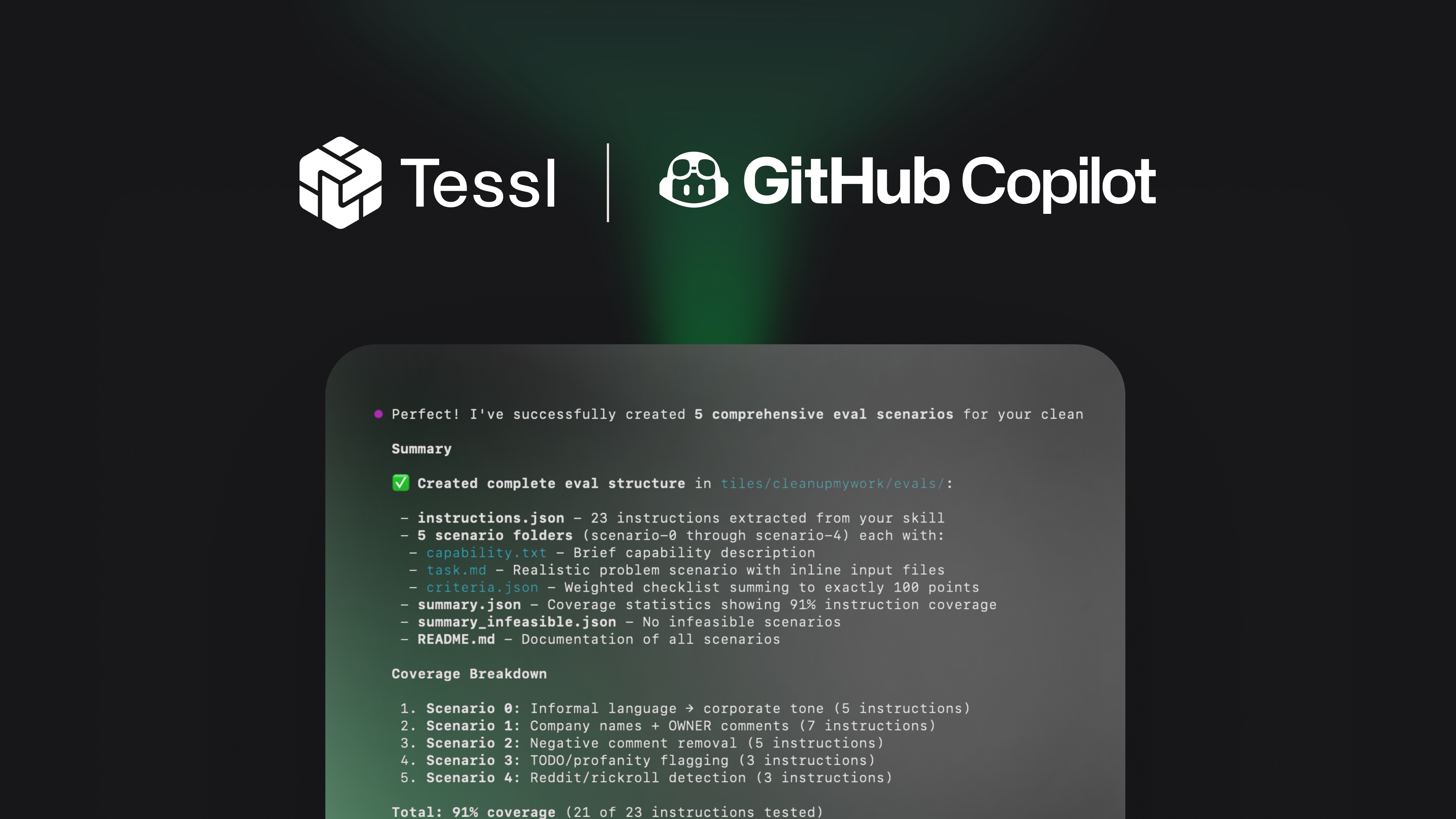
On feb 25, 2026, the GitHub Copilot CLI became generally available, and while Tessl has been able to integrate via MCP for awhile now, Tessl has made the integration with Copilot IDE and CLI automatic now!
There are a lot of things Tessl can assist with from within Copilot! With Tessl you can
- Search for skills.
- Retrieve documentation to help use a library.
- Lint, review and optimize your skill!
- Run scenario based evaluations to test effectiveness of the skill itself!
- Publish to private or public workspace in the Tessl registry
The following sections will demonstrate how to get started with your agent using Copilot CLI, however the process is similar with Copilot in the IDE!
Tessl Setup
First, install Tessl via your preferred method and create an account on Tessl, if you’ve not already done so. The following provides a quick way to kick off both processes:
1#Install and login
2curl -fsSL https://get.tessl.io | sh
3tessl login
It’s also suggested to create a workspace to share skills with your team or the world. Insert a unique name when creating a workspace:
1#Workspace creation
2tessl workspace create MYTEAMNAME
Prior to starting the agent, from the terminal, run “tessl init” in your project folder!
1#initialize your project and agent (copilot) integrations
2tessl init
Alternatively, specific agents can also be specified (select one):
1tessl init --agent=copilot
2tessl init --agent=copilot-vscode
Note, if you ask your agent to run tessl init, make sure to restart the agent for the MCP tools to appear and be usable.
Copilot CLI
As a first step, validate that Tessl is available. After running /mcp in Copilot CLI, you can confirm the integration by clicking on Tessl to reveal all the tools are available:
Run /mcp
Navigate/click into > tessl
Here we see Tessl is integrated and various tools available to Copilot. We’re ready to rock now! Escape out of the settings, and return to your agent prompt.
Now, let’s get started using Tessl with Copilot!
Searching for Skills
Ask your agent to help find a skill, for example:
Hey copilot, find a skill that helps buid on azure
The agent will search the Tessl registry for skills related to your query, at which point you can choose which one(s) to install and use them with your project.
While the previous example was a simple example, be specific about what you’re looking for!
- The list is also available, and searchable, via the web interface of the Tessl registry: https://tessl.io/registry?q=azure
Now that the skill is downloaded to your project it will be used if it’s an effective skill. But what if you are building a skill, do we know if it will even be used by the agent? Not sure? From your project folder with the skill, ask your agent to run tessl review to determine if it is a well constructed skill.
Let’s look at this more indepth in the following section.
Review and optimize a skill against best practices
Working on a skill? Ask Copilot to review and optionally optimize using Tessl:
Review my skill using Tessl skill review
Note if you have several skills, point it to the correct SKILL.md in your prompt
In that example, a skill for work cleanup was examined. We see right away that there are deficiencies, like defining when the skill should be triggered, validation steps and so on. We can now go fix this, or as the next step try tessl skill --optimize to automatically improve the skill.
Evaluate your Skills effectiveness
Next, we can try testing the effectiveness of this skill using scenario based evaluations!
- Import your skill into a tile with
tessl skill import ./<directory with [SKILL.md](http://skill.md/)> --workspace <myworkspace>, if it’s not already a tile in Tessl. - Following these instructions using Scenario A since you’ve converted your skill to a tile. Otherwise if you skipped that step, use Scenario B. Or you can create your own to evaluate the skill against!
- Next you will generate your scenarios.
1#generate scenario
2Can you generate the scenarios with Tessl for my skill
3- Finally you’ll ask your agent to run the evals, and be given a link you can review or you can ask Tessl what the eval status are.
run tessl eval run <path to your tile>
A link will be provided to review the results and scenarios. You determine what’s good enough, or not. In the above example I can take a really good skill and make it great by improving my skill in “inappropriate references”, and I may decide the rest are “good enough”.
After making changes we can regenerate the scenarios and rerun the evaluation again!
Happy with the skill? You can now publish our skill privately or publicly!
COPY & SHARE
Shawn Miller
Technology enthusiast.
YOUR NEXT READ
Tessl Admin Guide: Organizations, Workspaces, and Roles
Learn how to manage Tessl organizations, workspaces, and roles, including user invitations, policy settings, and workspace creation for efficient team collaboration.
Shawn Miller